Lecture 20: Animation and Games
Professor Briggs is out of town today so this lecture is four videos and activities instead of class.
Quick start
- Open the slides PDF and follow along throughout the videos
- Keep Thonny open for trying things out and completing the activities
- Download day20.zip, extract it in your
classfolder, and openday20_game.pyin Thonny - Watch Video 1: A pygame program, then do Activity A
- Watch Video 2: A Ball class, then do Activity B
- Watch Video 3: A Player and the keyboard, then do Activity C
- Watch Video 4: Rocks and collisions, then do Activity D
Do each activity before starting the next video: each video begins with the answers to the one before. The answers to Activity D are in the slides PDF. When you’re done, compare your code with the solution.
The story
By the end, you’ll have built a small dodge game. On Friday, Lab 6 turns it into Snowfall.
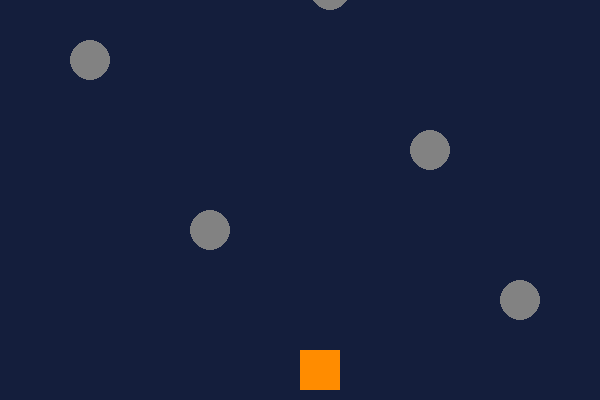
- A pygame program. Every game is a loop that makes one frame at a time: check what the player did, move things, draw the new frame, show it.
- A Ball class. The bouncing ball from
bounce.pybecomes an object withdrawandupdatemethods. Then twenty balls are just a list and a loop. - A Player and the keyboard. A square you move with the arrow keys, kept on the screen with
minandmax. - Rocks and collisions. Rocks fall from above. When the player’s rectangle overlaps a rock’s, the game is over.
Activities
All four activities are in day20_game.py. To run a different one, change the last line of the file (keep its indentation).
| Video | Then do | Last line of the file |
|---|---|---|
| 1. A pygame program | Activity A: in show_scene, draw a scene with at least 4 shapes |
show_scene() |
| 2. A Ball class | Activity B: write Ball.update; in show_balls, update and draw each ball |
show_balls() |
| 3. A Player and the keyboard | Activity C: write Player.move |
move_player() |
| 4. Rocks and collisions | Activity D: write Rock.update and Rock.get_rect; in play, update each rock and check for a hit, then draw each rock |
play() |
Each activity has a “check yourself” question to answer on paper.
If running day20_game.py gives ModuleNotFoundError: No module named 'pygame', install midd-media as in Lecture 17 (see Working with Images). Don’t install pygame separately.
Quick reference
- The screen is 600 pixels wide and 400 tall:
SCREEN_WIDTHandSCREEN_HEIGHT - (0, 0) is the upper-left corner.
xgrows to the right, andygrows down - A color is
(red, green, blue), each from 0 to 255 pygame.draw.circle(screen, color, (x, y), radius): placed by its centerpygame.draw.rect(screen, color, (x, y, width, height)): placed by its upper-left corner- Shapes drawn later land on top of earlier ones
pygame.Rect(x, y, width, height)has attributesx,y,width, andheight.a.colliderect(b)isTrueif rectanglesaandboverlap- Each method’s docstring says exactly what it should do
Getting help
Stuck, or have a question? Post on Campuswire: Professor Briggs, Smith, Professor Andrews, or a classmate will help.
Coming up
- Homework 6 is due Thursday 11/19
- Lab 6 is Friday 11/20: bring your
day20_game.py - Quiz 10 (Lectures 19-20) is at the start of the first class after break
- Reading: Notes 16 covers the same ideas with slightly different code