Lab 1
Objectives
- Work with scripts
- Gain some experience with the debugger
- Use expressions and variables to solve actual problems
Part 0: Setup
If you haven’t already done so in class, create a directory called cs145 on your computer – your Documents folder is a good default, though a cloud-syncing service you already use, like Dropbox, OneDrive, or Google Drive, works too. Within cs145, create three additional directories: labs, homework, and class.
Pick one location and stick with it all semester: you’ll be navigating back to this same cs145 folder in Thonny for every lab and homework, and code scattered across Desktop, Downloads, and random folders is a common source of confusion later on.
Now, download the file lab1.zip by clicking the “Download Starter Code” button above. It will most likely land in your Downloads folder – that’s just where browsers put things, not where you should keep working. Move lab1.zip out of Downloads into your cs145/labs directory. Do this before extracting it, so the resulting files end up in the right place from the start.
Next, extract the zip file so that it creates a folder called lab1 inside labs:
- Mac: double-click
lab1.zip. - Windows: right-click
lab1.zipand choose “Extract All…”.
Confirm it worked: you should see a cs145/labs/lab1 folder containing lab1_part1.py and lab1_part2.py. If you don’t see that, extraction didn’t finish.
Once you’ve confirmed those files are there, delete lab1.zip – you don’t need it anymore, and it’s one less thing to accidentally double-click again later (which would just create a confusing duplicate folder).
Part 1: Using the debugger
For the first part of this lab, we want you to practice using the debugger that comes with Thonny to find problems in some code.
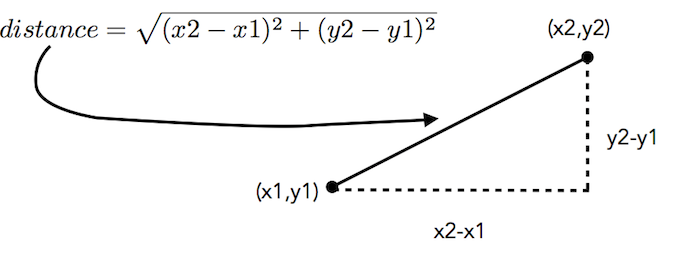
We have written a script for you that calculates the Euclidean distance between two points (x1, y1) and (x2, y2). Recall from geometry that we can think of the distance between two points as being the hypotenuse of a right triangle formed by the two points and a third point (x2, y1). The length of the hypotenuse is just the square root of the sum of the squares of the other two sides.
Here is the problem: the script we wrote doesn’t work.
When we run the script that tries to calculate the distance between the points (1, 4) and (4, 8), we get the distance to be 2.449489742783178. But, the change in x is 3 (4 - 1), and the change in y is 4 (8-4), so we should have gotten the square root of 9 (3 squared) plus 16 (4 squared). 9+16 is 25, so our distance should be 5. What went wrong?
You are going to figure this out using the debugger.
- Step one: The file
lab1_part1.pycontains the buggy code. Open it in Thonny by following the steps below:- Open Thonny
- choose File/Open…
- Navigate to
cs145/labs/lab1, select the file, and click ‘Open’.
- Step two: Run the file in Thonny. Verify that the distance is incorrectly calculated. (Green play button on toolbar or under the Run menu). It might help to add a
printstatement so that you can see the value fordistance! - Step three: You will notice that lines 10 and 11 of the code have comments indicating what the value should be after running each line of code. To aid in your debugging process, read through the code and for each line, add a comment indicating what the value of the variable should be after that line of code is executed.
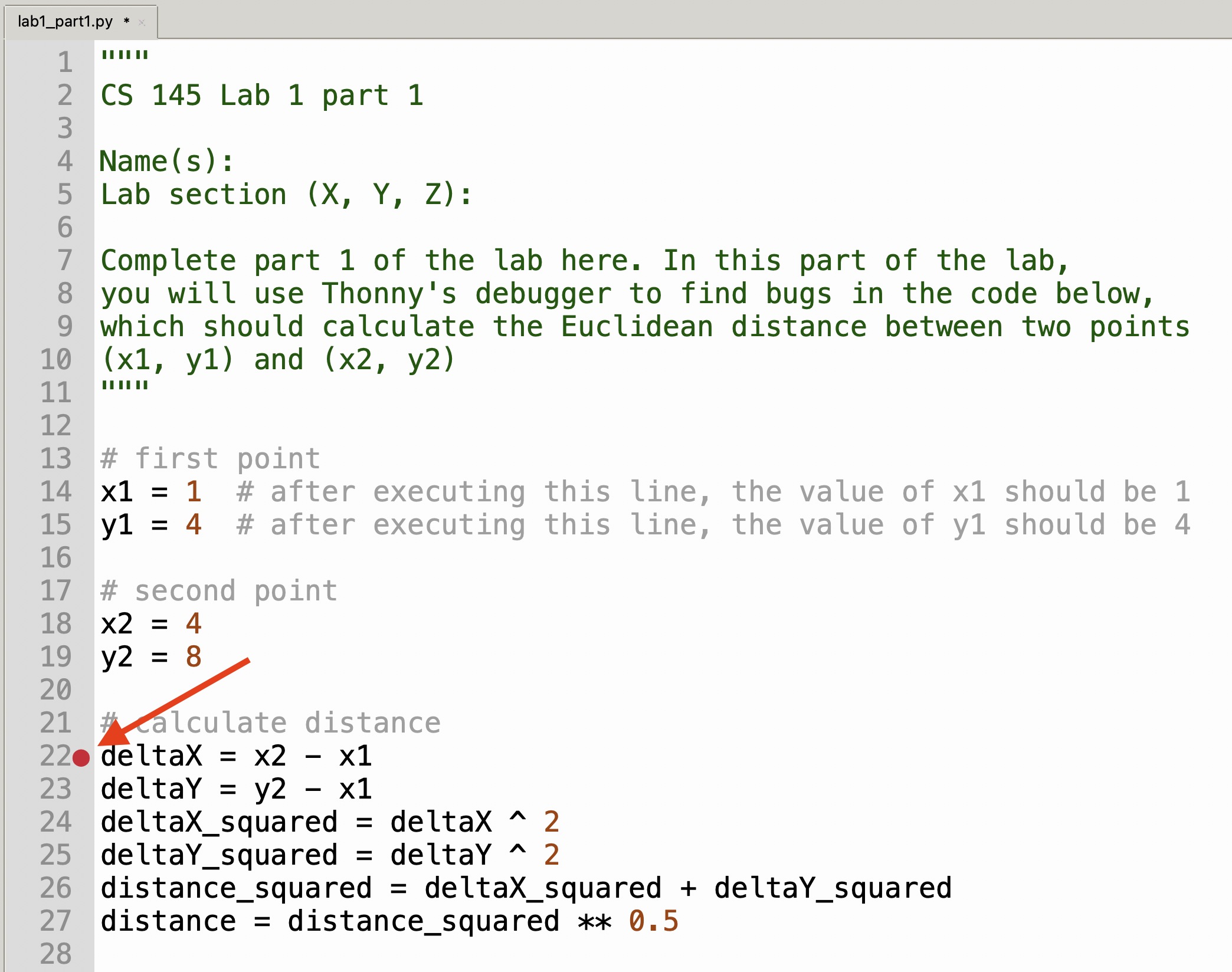
- Step four: Add a breakpoint where deltaX is calculated. You can do this by clicking next to the line numbers in the editor. The breakpoint is where we want the script to stop running so we can pause and look at the values in variables. (You can add as many breakpoints as you need to debug your program). Here is a picture with the breakpoint in place.
- Step five: Click the ‘Debug current script’ button (it looks like a little green bug).

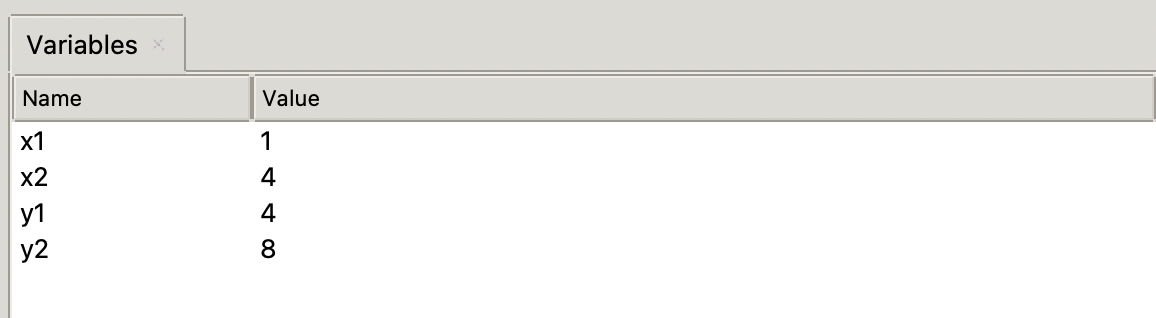
- Step six: Make sure that you have the ‘Variables’ pane open. If it is not visible, you will find it in the ‘View’ menu.
- Step seven: Click the ‘Step over’ button. This will execute one line of your program and stop. As you do this, you will see that the highlighted line tells you where you are in your program. If you want to see how the interpreter actually proceeds in evaluating an expression, you can push the ‘Step into’ button next to the ‘Step over’ and the debugger will show you step by step what the interpreter is doing. It is pretty cool!

- Step eight: As you step over each line of the script, look at the value of the variables in the ‘Variables’ tab. Check to see if the value stored in the variable is what you think it should be. If the value is incorrect, look at the expression you just ran and, if you think there is an error, fix it by changing the code.
- Step nine: If you make a change, you have to restart the debugging process over. Click the ‘Continue’ button (which resumes execution of your code until it completes or hits another breakpoint), or click the ‘Stop/Exit’ button, which just stops immediately. Before clicking the ‘Debug’ button again to reload the file, make sure you save your new version.

- Step ten: Repeat until the script computes the correct distance.
Part 1.1: Submitting to Gradescope
Now, let’s take a break from programming to submit your code on Gradescope. You’ll submit all of your code for this class to Gradescope, and we will use an autograder to help us grade your assignments. This means that Gradescope will run your code and check your answers automatically against the correct answers.
There are some great things about this: you can submit on Gradescope several times to get near-instantaneous feedback, and you might be alerted to problems in your code that you wouldn’t otherwise have noticed. The downside is that automated tests are very picky. If you aren’t passing a test, make sure that you are following the assignment perfectly; for instance, if we say that you must use a specific filename or variable name, there is probably a reason for that!
We will demo in lab the process of submitting your files on Gradescope. Make sure that (a) you always submit all of the files associated with the assignment and (b) you always wait until you see the final screen, which shows you which tests you have passed and what your score is.
Click the “Submit on Gradescope” button above to be taken to the Gradescope assignment, and wait to see your feedback. Do you see that the Part 1 test is passing? If not, read the details on the left side of the page. Hopefully that will help you figure out what you need to fix. If you’re still confused, ask an instructor for help! You should make sure that you are passing that test before moving on to the next part.
Part 2: Baking something?
For part 2 of this lab, you will have to come up with an algorithm that allows you to calculate how long it would take to preheat the oven to bake something.
Open lab1_part2.py in Thonny, then read the rest of the assignment below to get started!
Facts:
- The current room temperature is 72 degrees Fahrenheit
- The oven can heat up 60 degrees Fahrenheit for each minute (heating rate)
- We want to reach a temperature of 350 degrees Fahrenheit
Question:
- How long will it take to preheat the oven?
Requirements:
- Combine your known facts using expressions to calculate the time (in minutes) that it will take to preheat the oven.
- The final result should be assigned to a variable (more about naming your variables in the suggestions). It should be a float representing exactly how long it will take to preheat the oven.
- The final result should also be printed, in the format specified below:
The oven will take ____ minutes to preheatWhere ____ is filled in using the value assigned to your variable. Think a little bit about how to print something with this level of complexity. You will need to use string concatenation (+) to combine strings together, but… the result is a float, not a string! Therefore, in your print statement, you will need to use the str function to convert the value to a string.
Using print statements to check values as you go is a good practice, but because of the way our autograder works, you will need to remove any extra print statements other than the final one before you submit.
Suggestions:
- Think about the problem on paper first. Make a plan: what do you need to do? What needs to be calculated? How do you need to combine the data that you have in order to find the time?
- You should create variables with meaningful names to store your known values (we have created one for you to give you an idea of what we mean by “meaningful names”) and use them in your expression(s):
- The room temperature
- The preheating temperature that we want to reach
- The heating rate
- If the final expression is too long or complicated, consider leveraging the power of variables to perform intermediate calculations.
Submitting your work
When you are done, submit these two files to Gradescope:
lab1_part1.pylab1_part2.py
Ensure that the upload succeeds and your submission passes all visible tests.