The turtle
0. Learning objectives
- Draw with the
turtle
- Combine turtle and recursion to create recursive drawings
turtle
1. The
|
|
|
Remember Lightbot? The
To get a feel for the |
|
Examples
Example 1: drawing a square
Let's do some examples, so you can see how the turtle module works. We'll start off by drawing
a square which has a side length of length (on each of the four sides).
Challenge: Can you use the function above to draw two cascading squares of the same size? With cascading we mean that the top-left corner of the second square should be a little to the bottom and to the right of the top-left corner of the first square.
We can draw cascading squares by using our square() function twice: call
square(), lift the pen, move a little bit down-right, put the pen back down, and call the
square()function again. Notice that the every time the turtle turns, it turns with
respect to the direction it is facing, not some absolute reference.
Copy or type these lines in the script above.
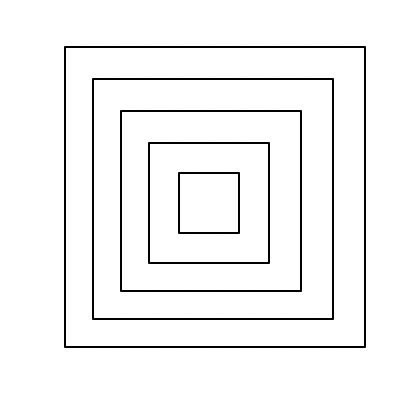
Example 2: nested squaresUsing the turtle is useful to understand recursion. Write a recursive function called Think about how you would break the problem in base and recursive parts. You could start by deciding that in the base case we do nothing and that the base case happens
when |
|
Note: if you don't want to see the turtle "tracing" animation, you can set
turtle.tracer(False) before doing any drawing commands, which will do the drawing without showing
you the animation. This will be useful when you are performing a lot of drawing commands and don't want to
wait for the animation to run.
Note2:In the base case we used the keyword pass instead of return. This
keyword tells the interpreter to do nothing and go to the next statement in the code. It is like a no
operations command. In Python every block of code after a : has to have at least one
statement. If we don't want to do anything, we can use pass. The difference between
pass and return, is that return will yank you out of the function while
pass will simply do nothing but keep staying in the function. As you write more programs, you
will notice that sometime you might want to use one and sometimes the other depending on your algorithm. In
this case, we could have used either! (Try it out).
Example 3: spiral
Let's do another recursive example with the turtle. This is the the graphic version of the
go_back() example we have seen in the recursion chapter. This time, we'll draw a spiral. Our
spiral() function will take in length that we would like to draw for the current
level (same concept as the previous example). The base case will be if the current "level" is
equal to zero, in which case we return (back through all the recursive function calls). Otherwise, in the
recursive step, we will go forward by some length, then turn left by an angle of 30 degrees, and then keep
recursing by calling spiral() with a smaller length (95% of the current length) and decrement the
level by 1. After drawing a part of the spiral and performing the recursive call, we would also like the
turtle to return to it's starting position, so we need to re-orient the turtle by turning right by 30 degrees,
and then moving backwards (undoing the forward call) by the same length. Write it up, then check
the code!